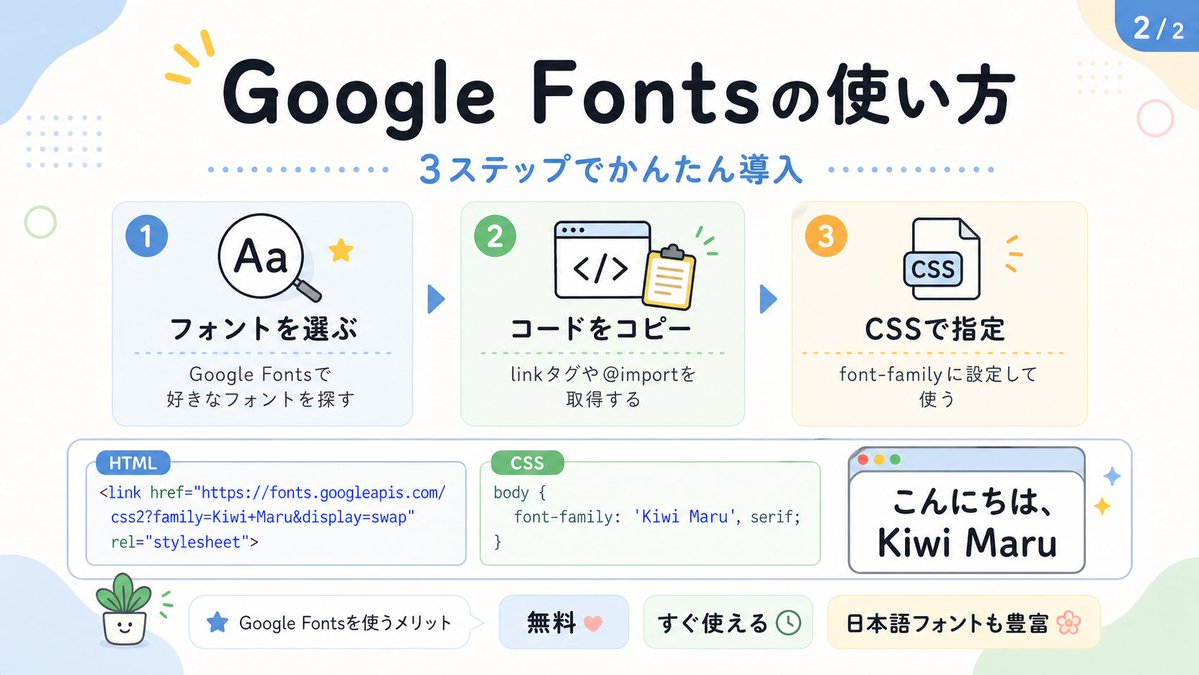
Create a cute pastel Japanese infographic slide with a clean white background and soft rounded abstract corner blobs in pale blue, cream, and light green. The design is friendly, educational, and modern, with thick rounded sans-serif Japanese typography, subtle drop shadows, thin gray outlines, dotted divider accents, and small decorative doodles. At the top center, place a large bold headline in dark navy that reads "Google Fontsの使い方". Directly below it, add a blue subheadline reading "3ステップでかんたん導入" with a horizontal row of small blue dots on both sides. In the top right corner, add a rounded blue page badge that reads "2/2".

Arrange 3 rounded rectangular step cards across the upper middle row, evenly spaced left to right, each with a pale tinted background, soft border, and a colored circular number badge in the upper left. Card 1 has a pale blue background and a blue badge with "1". Inside, show a simple magnifying glass icon over the letters "Aa" plus a small yellow star accent. The bold title reads "フォントを選ぶ" and the smaller text below reads "Google Fontsで
好きなフォントを探す". Card 2 has a pale green background and a green badge with "2". Inside, show a browser window icon with code brackets "</>" and a clipboard, plus tiny green motion marks. The bold title reads "コードをコピー" and the smaller text below reads "linkタグや@importを
取得する". Card 3 has a pale cream background and an orange badge with "3". Inside, show a document icon labeled "CSS" with small orange accent marks. The bold title reads "CSSで指定" and the smaller text below reads "font-family に設定して
使う". Place 2 medium blue triangular arrows between the 3 cards to show progression.

Across the lower middle, create 3 horizontally aligned demo boxes. The left box is a rounded white code panel with a small blue tab label reading "HTML". Inside, display this code in blue text exactly across 3 lines: "<link href=\"https://fonts.googleapis.com/"
"css2?family=Kiwi+Maru&display=swap"
"rel=\"stylesheet\">". The center box is a rounded white code panel with a green tab label reading "CSS". Inside, display dark text exactly as: "body {"
"    font-family: 'Kiwi Maru', serif;"
"}". The right box is a rounded white mock browser window with a pale blue title bar and 3 tiny circular window buttons at top left in red, yellow, and green. Inside, show large Japanese sample text in black reading "こんにちは、
Kiwi Maru" in a cute rounded handwritten-style font. Add 2 small sparkle accents to the right of this browser window.

At the bottom, place 4 pill-shaped badges from left to right. Badge 1 is white with a small blue star icon and text "Google Fontsを使うメリット". Badge 2 is pale blue with bold text "無料" followed by a pink heart. Badge 3 is pale green with bold text "すぐ使える" followed by a small clock icon. Badge 4 is pale yellow with bold text "日本語フォントも豊富" followed by a flower icon.

Add 4 extra decorative elements around the canvas: a yellow 3-stroke sparkle near the top left of the headline, a pale blue dotted square grid in the upper left background, a thin light green ring on the left side, and a tiny smiling potted plant illustration in the lower left corner. Keep the whole composition flat vector-like, crisp, cute, and highly legible, in a social-media educational carousel style.





0 Comments
👥 Co-learning Circle 0
Observe other members' variables & configurations, and click "Study & Retry" to instantly import settings and practice!